
Using non-MS-certified videoconferencing devices with Cloud Video Interoperability for MS Teams meetings
Before you begin
First, verify whether your organization’s videoconferencing devices are enabled with Cloud Video Interoperability (CVI).
Then in the meeting invite, look for Join with a videoconferencing device.
Notes
Contact your organization’s help desk to get support and confirm whether the videoconferencing devices are CVI-enabled.
If you are connecting a videoconferencing device to an MS Teams meeting for the first time, you should test the connectivity ahead of your meeting.
Using manual dialing to join an MS Teams meeting
On the touch pad, enter the teams@xxx-xxx.video.canada.ca address for your department found in the meeting invite.
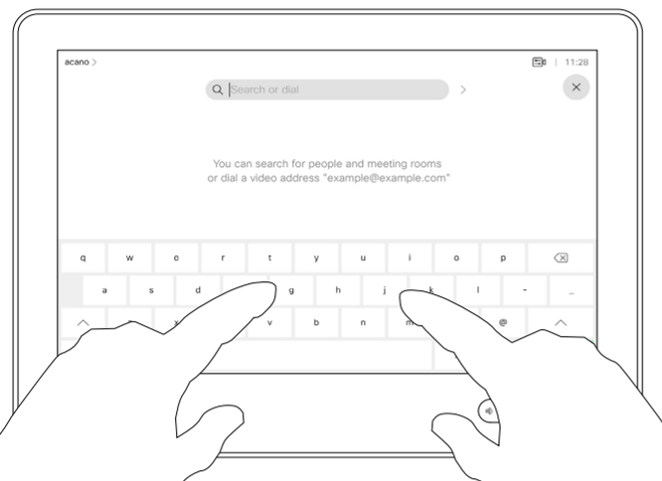
Enter the Video Conferencing ID from the meeting invite followed by the pound (#) sign.
The videoconferencing system will wait in the lobby.
A Teams participant in the meeting must admit the videoconferencing system.
Note: For assistance with adding this email address into your address book, contact your organization’s IT service desk.
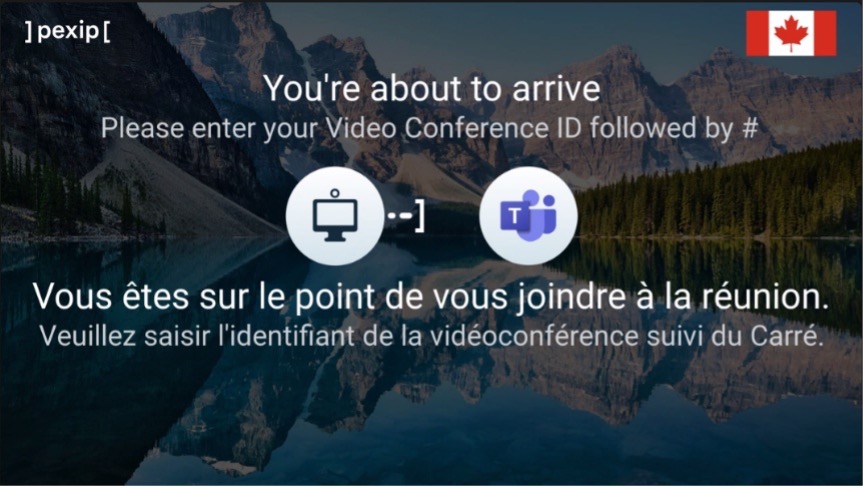
Using one-touch join to connect to an MS Teams meeting
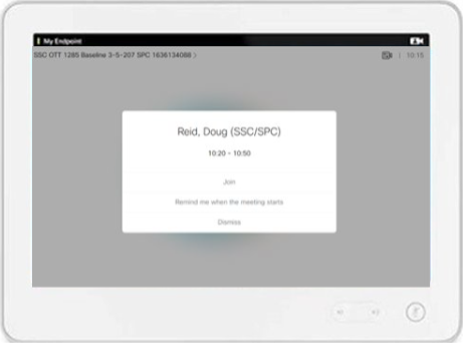
With one-touch join, scheduled meetings are visible on the videoconferencing system’s display screen and on the touch panel.
Select Join to connect the boardroom to the meeting.
Creating a new or test MS Teams meeting
From Outlook
-
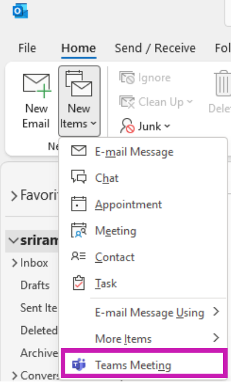
- Click the New Items (1) button.
- Select Teams Meeting (2) from the drop-down menu to create a new Teams meeting invitation with auto-generated join info.
- Add the attendees and the boardroom(s) you want to use in the Required and Optional fields.
The meeting invite automatically generates details for joining a meeting from a videoconferencing device:
- a standard link for joining via an MS Teams desktop or mobile client
- how to join from a videoconferencing device in a meeting room
- how to join from a telephone or mobile device
Meeting display
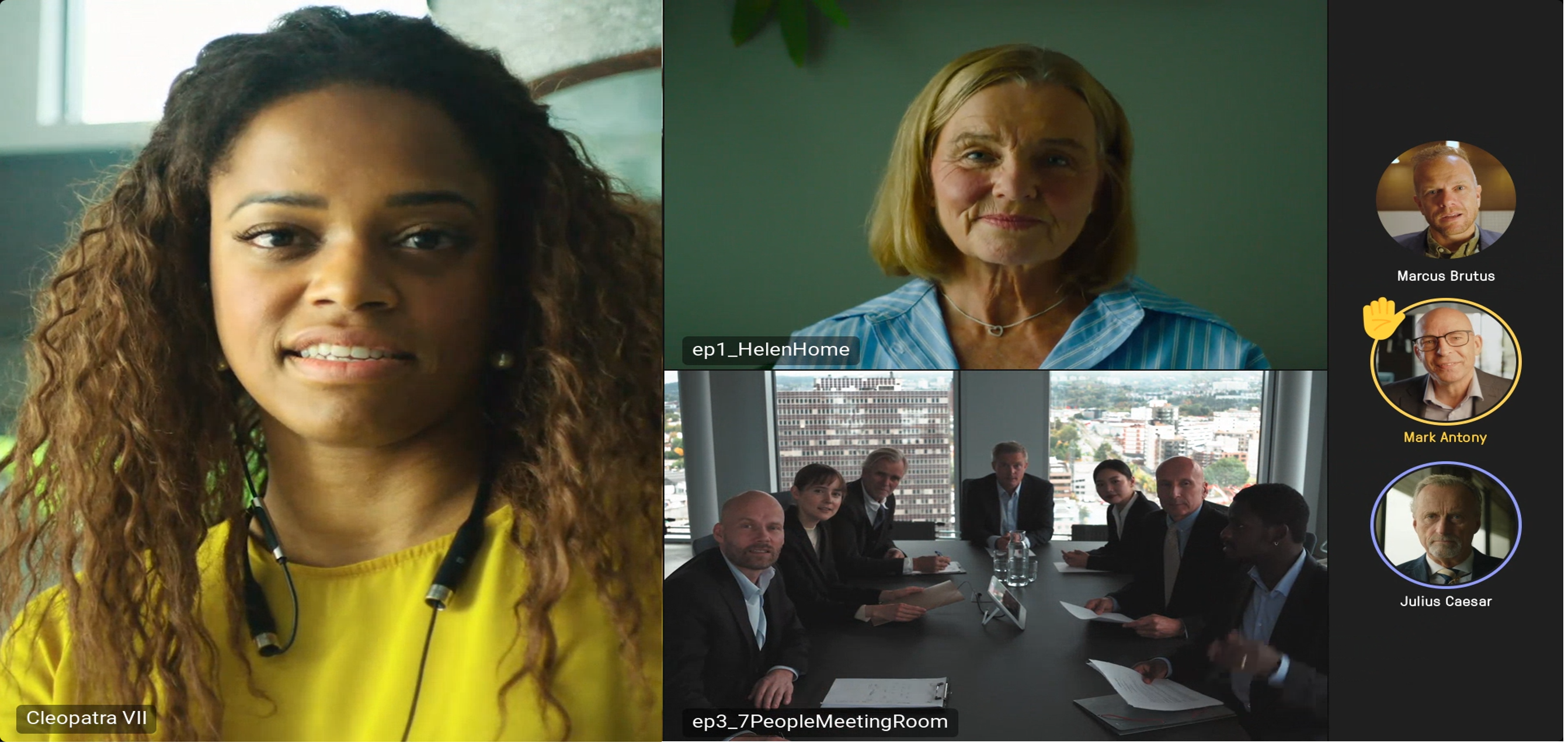
Meetings are displayed in a default Teams-like layout.
In this layout, participants’ avatars, active speaker indication and raised-hand indicators all have a similar look and feel to the native Teams layout.
To set a different default layout, press the Meeting Controls button or *8.
Recording or transcribing notifications
If an MS Teams conference is recorded or transcribed, audio prompts indicating that recording/transcription has been started/stopped are played to participants. Recording or transcribing indicators are included in the video stream sent to the participants.
Lobby notification
Use MS Teams to admit attendees.
Lobby bypass
Participants using cloud-registered video devices can join MS Teams meetings without waiting in the lobby.
Raise Hand indicator
When a Teams participant raises their hand:
- the display indicates the number of participants with a raised hand
- the indicator bar alternates every 5 seconds showing the name of the first person who raised their hand
Use MS Teams to raise your hand.
Mute and unmute
Mute CVI-connected videoconferencing devices in the same way you would mute any meeting participant.
An on-screen notification will indicate that the videoconferencing device has been muted from the Teams app.
To quickly unmute, press *6 from the videoconferencing device.
Unmuting via *6 also clears the on-screen muted notification.
For security purposes, only the muted videoconferencing device can unmute itself.
Enhanced dual-screen experience
-
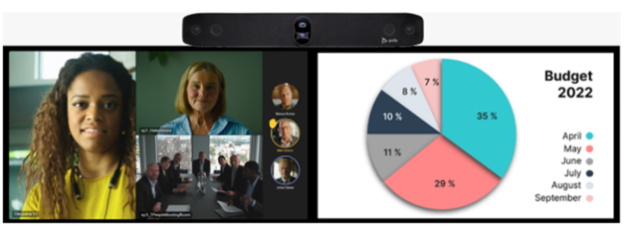
The dual screen shows participants and active content sharing.
-
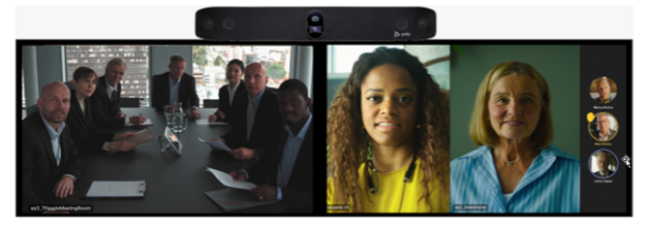
The dual screen shows active video participants across both screens (no active content sharing).
Dial *9 if this display is not automatically activated.
Cloud Video Interoperability limitations
PowerPoint Live will soon be available on CVI-enabled videoconferencing devices.
Use this workaround: Use content sharing via MS Teams instead of PowerPoint Live, so that all participants can view the content.
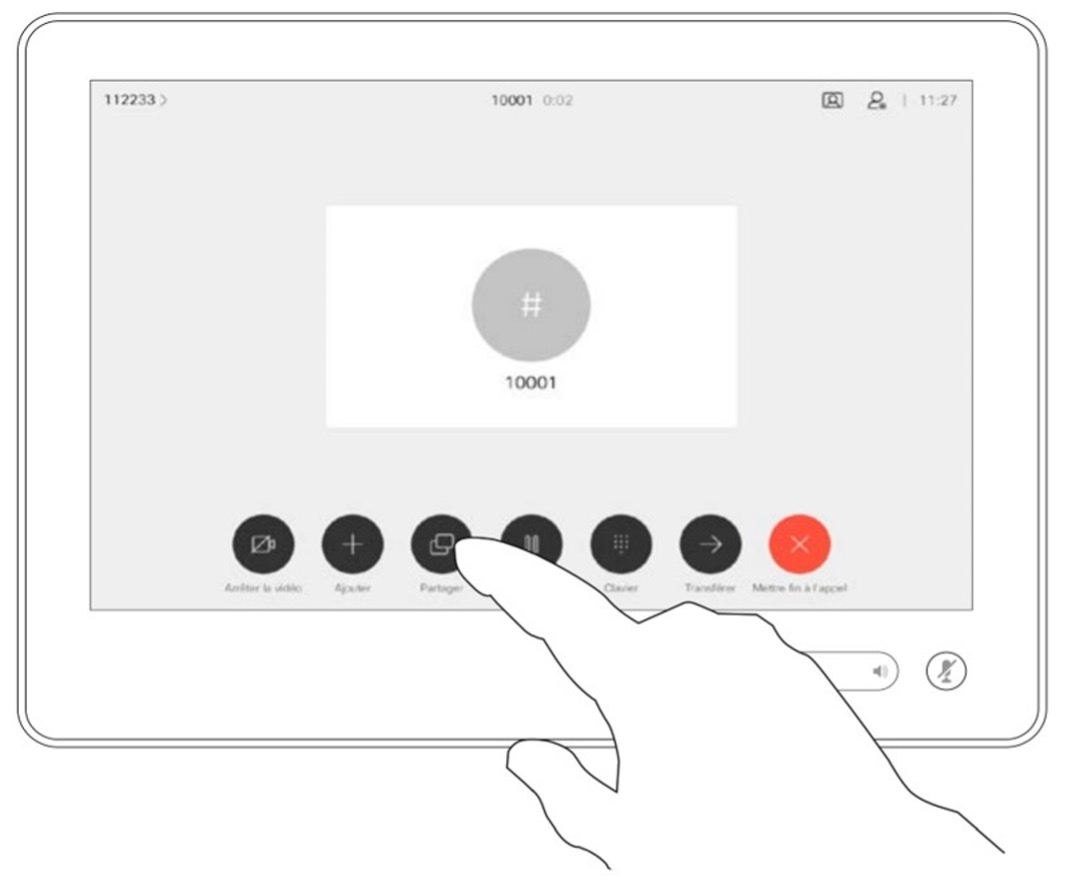
You can also use the videoconferencing device’s screen sharing function to display content in the MS Teams meeting.
When using a CVI-enabled videoconferencing device in an MS Teams meeting, the Raise Hand function and the chat feature are unavailable.
Use this workaround: The meeting participants should use their respective devices to join the MS Teams meeting, so that they can raise their hand and participate in the meeting chat as needed.
Before joining the meeting, participants should disable their audio and video to avoid causing an echo loop.
Support
If you need support or to raise concerns with the CVI service, please contact your organization’s IT service desk.
Note: Layouts may differ from those shown in these instructions. If you have questions about specific meeting layouts, contact your organization’s IT service desk.