
Using MS-certified devices for MS Teams meetings
These instructions show you how to join and schedule meetings using Microsoft-certified devices.
If you’re scheduling a Microsoft (MS) Teams meeting for the first time, follow the instructions to test the connectivity before your planned meeting.
Note: Not all GC organizations or user accounts have MS-certified devices.
You may have a videoconferencing device with Cloud Video Interoperability. Refer to Using non-MS-certified videoconferencing devices with Cloud Video Interoperability for MS Teams meetings.
Contact your organization’s IT service desk if you are unsure what device you have.
Joining an MS Teams meeting
In Teams, select Calendar to view your past and upcoming meetings. Your Teams calendar syncs with your Outlook calendar. You should see the same meeting in both locations.
Select the meeting invite to see meeting details, such as who is attending and agenda items, as well as the information to join the meeting.
Click the Join button in the top-right corner to join the meeting.
Creating a new or test MS Teams meeting
From Teams
- Go to your Teams calendar.
- Select New meeting.
-
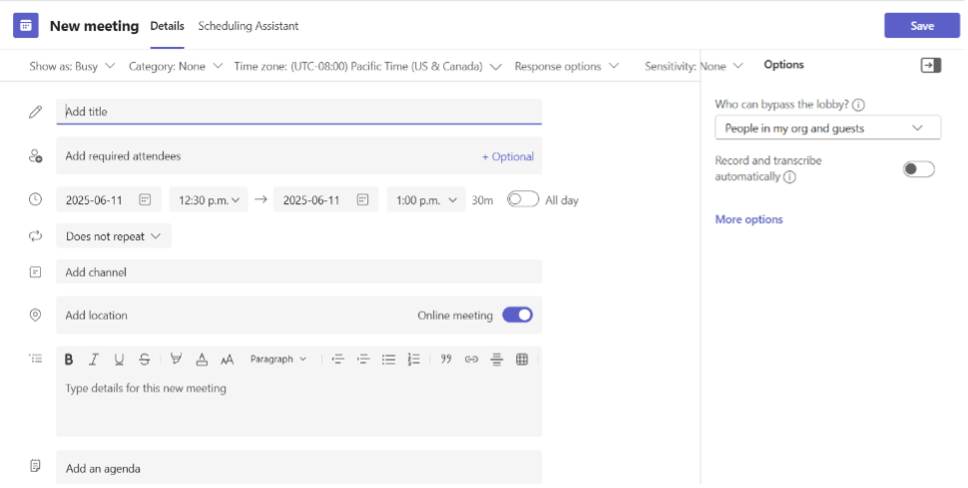
- Add your meeting title, start and end times, and other details.
-
Enter names in the Add required attendees field to invite them to the meeting.
Note: To invite someone outside your organization, type in their email address and they’ll get an invite to join as a guest—even if they don’t have MS Teams.
- Select Scheduling assistant to see everyone’s availability in a calendar view.
- Select Save after you’ve added all your meeting details.
From Outlook
-
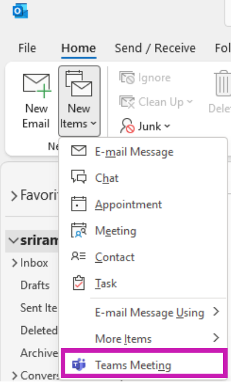
- Under Home, click the New Items button
- Select Teams Meeting from the drop-down menu. This creates a Teams meeting invitation with auto-generated join information:
- Join on your computer, mobile app or room device
- Join with a videoconferencing device
- Or call-in (audio only)
- In the meeting invite:
- In the Required field, enter the resource account (email address) of the room and the email addresses of the attendees
- Enter the title of the meeting in the Subject field
- Set a date and time for the meeting
- Click the Send button to deliver the invitation to the invitees
From a boardroom or meeting space touch panel
For instructions, consult Microsoft Teams Rooms-enabled meeting spaces.
Meeting display
The default meeting display is Gallery mode. This layout shows multiple participants at once. Large Gallery View is available when at least 10 participants have their cameras turned on. It can show the video feeds of up to 49 other participants at once.
To set a different default layout, select the View (1) button located on the left-hand side of the utility bar (at the bottom of the touch-panel display).
Recording or transcription notification
If an MS Teams conference is being recorded or transcribed, audio prompts indicating that recording/transcription has been started/stopped are played to participants. The recording and transcription are also included in the video stream sent to participants once the meeting has ended.
Raise Hand and React indicators
Select Raise Hand in the top menu to let others know you’d like to speak without interrupting the conversation.
Select React in the top menu to choose a reaction to engage in a meeting.
Mute and unmute
To mute your mic during a meeting, select Mic in your meeting controls. To turn your mic back on, select Mic.
Support
For user support or to raise concerns with the service, please contact your organization’s IT service desk.
Note: Layouts may differ from those shown in these instructions. For questions regarding specific meeting layouts, GC organizations should contact their respective IT service desk.