
Online Reporting via Single Window How-To Guide for the Chemicals Management Plan (CMP) Notice with Respect to Hydrofluorocarbons
How-To Guide
Table of Contents
- 1. Introduction
- 2. Chemicals Management Plan (CMP) Online Reporting
- 3. The CMP Reporting Dashboard
- 4. Selecting an Organization, an Initiative and a Form Type
- 5. Starting a New Submission
- 6. Navigating and Saving Within the Online Forms
- 7. Completing a Submission
- 8. Editing, Deleting and Generating a Report of a Submission
- 9. Submitting a Submission
- 10. Un-submitting a Submission
- 11. How to Contact Us
Table of Figures
- Figure 2-1: Accessing reporting to the Chemicals Management Plan (CMP)
- Figure 3-1: The CMP Reporting Dashboard
- Figure 6-1: Left menu
- Figure 7-1: The “Identification” page
- Figure 7-2: The “Substances to Report On” page
- Figure 7-3: The “Upload Submission Documents” page
- Figure 7-4: The “Confidentiality and Declaration” page
- Figure 8-1: “Actions” menu items
- Figure 9-1: The “Submit” menu item under “Actions”
- Figure 9-2: Submission confirmation email
- Figure 10-1: The “Un-submit” menu item under “Actions”
1. Introduction
Environment Canada’s Single Window is an online system for environmental reporting. Stakeholders of the Chemicals Management Plan (CMP) can use the system to provide data in response to Section 71 Notices and calls for voluntary data. More information regarding the CMP and these Notices can be found on the Chemical Substances website.
The reporter can log-on to Single Window using either SecureKey Concierge or a Government of Canada GCKey. For more information about these login options, please consult:
- The SecureKey Concierge website; and
- The Government of Canada GCKey Frequently Asked Questions website.
After logging into Single Window, the reporter arrives in the Single Window Information Manager (SWIM). The SWIM facilitates centralized management of information about organizations, facilities and contacts reporting via Single Window, in order for this information to be entered only once for all reporting. This reduces the reporting burden associated with re-entering this information for each program or report. Using SWIM, the organization administrator can also manage the system permissions of Single Window users within their organization.
Through SWIM, the reporter requests access to the program(s) to which they will be reporting. In the case of those reporting to CMP, a new organization in SWIM needs to Request Access to the “Single Window Information Manager” under the list of programs.
For guidance in using SWIM, please refer to Environment Canada’s Single Window – A User’s Guide.
2. Chemicals Management Plan (CMP) Online Reporting
Once the reporter has their account properly set up in SWIM, they can click on the SWIM “Home” link, and then the “Chemicals Management Plan” link will display on the Home page. Click the “Chemicals Management Plan” link to continue (see Figure 2-1).
Figure 2-1: Accessing reporting to the Chemicals Management Plan (CMP)

Long description of the figure 2-1
Figure 2-1: Screenshot of the Single Window Information Manager home page.
- The link to Chemicals Management Plan can be found on this page.
3. The CMP Reporting Dashboard
Following the Chemicals Management Plan link from the SWIM Home page, the reporter arrives at the CMP reporting dashboard (see Figure 3-1). This page can be used to:
- Start or edit forms for recent initiatives; and
- Submit completed forms, etc.
This page also provides the status of a submission, a link to the Hydrofluorocarbons (HFC) initiative published in the Canada Gazette and the date and time a particular submission has been modified.
Figure 3-1: The CMP Reporting Dashboard

Long description of the figure 3-1
Figure 3-1: displays a screenshot of the CMP Reporting Dashboard page.
- Label 1 highlights the Company List drop down menu.
- Label 2 highlights the Initiative drop down menu.
- Label 3 highlights the Form Type drop down menu.
- Label 4 highlights the Filter symbol which reporters click on in order to list the form types for a particular initiative available for a particular organization.
- Label 5 highlights the Edit symbol which reporters click on in order to start a new form.
- The page depicts the Reports table in which forms selected by reporters are listed. The table includes a graphical depiction of the status of a form, the initiative name, the form type, and the Edit symbol under Actions.
4. Selecting an Organization, an Initiative and a Form Type
When the reporter has access to more than one organization in SWIM, they can select the organization for which to submit data using the drop-down menu for the list of organizations on the CMP reporting dashboard (see label 1 in Figure 3-1).
To report for another organization that is not listed, the reporter can click “Home” on the top menu to return to SWIM. For details on adding companies, please refer to Environment Canada’s Single Window - A User’s Guide, “Tutorial 2: Connecting Your Profile to an Organization”.
Next, the reporter can select an initiative from the drop-down menu for the list of available initiatives specified by the program (see label 2 in Figure 3-1).The initiatives appear in order of most recent publication under the “Initiative” drop-down menu.
The available reports are listed under the “Form Type” list (see label 3 in Figure 3-1).
The reporter can then click the “Filter” symbol to list the form types for a particular initiative available for the selected organization to which a user has permission to report on (see label 4 in Figure 3-1). Note that a specific initiative or “All Initiatives” and a specific form type or “All Form Types” can be selected from the corresponding lists.
5. Starting a New Submission
To create a new submission, the reporter can choose the initiative and click the “Edit row” symbol of the appropriate form on the CMP reporting dashboard (see label 5 in Figure 3-1).
Once the reporter starts a submission, the status columns (first and fourth column) provide the status of the submission based on its state. The reporter can then click the following items under “Actions”:
- “Edit”, “Delete” or “Generate Report” if the status of the submission is “In Progress”;
- “Edit”, “Delete”, “Submit” or “Generate Report” if the status of the submission is “Ready to Submit”; or
- “Un-submit” or “Generate Report”, if the status of the submission is “Submitted”.
6. Navigating and Saving Within the Online Forms
6.1 Top menu
“Home” navigates to the SWIM home page.

“Help” opens a sub-menu with the following options:

- “Toggle In-Context Help”: displays additional help for the page the reporter is on;
- “Contact CMP”: contact information for the CMP program;
- “SWIM Guidance”: guide to using the Single Window Information Manager; and
- “CMP Online Reporting How-To Guide”: this Guide, HTML or PDF formats.
“Logout” will log the reporter out of the Environment Canada’s Single Window and return them to the “Login” page of the Single Window system. The reporter is warned that any unsaved changes will be lost.

This menu item opens the Environment Canada homepage.

6.2 Breadcrumbs
“Breadcrumbs” show the key selections the reporter followed to get to their current page (i.e., “Identification”, “Substances to Report On”, “Upload Submission Documents”, “Confidentiality and Declaration”). They allow the reporter to quickly navigate back to one of their previous pages by clicking one of the links. The following is an example:
SWIM > Test Organization > Section 71 Notice > Identification
6.3 Left Menu
Within the CMP online reporting tool, the left menu is context-specific. When viewing the CMP Reporting Dashboard, the left menu contains only a link to the CMP Reporting Dashboard and, if clicked, will refresh the page.
When viewing pages within a form, the left menu will include links to other pages within that form as well as the status of those pages. Also, at the top of the left menu is a link that contains the name of the reporting organization that will re-direct the reporter back to the CMP reporting dashboard when clicked (see Figure 6-1).
Figure 6-1: Left menu

Long description of the figure 6-1
Figure 6-1: Screenshot showing the left menu that is present on each page.
- The menu is called “Reporting Details” and it contains the name of the organization as well as the names of the pages of the current form. It also depicts the status of each page.
6.4 Navigating and Saving Buttons
To navigate within the forms, the reporter can use the buttons and links described in this section. Using the Browser “Forward” and “Back” buttons or keyboard shortcuts is not supported and may lead to unexpected behaviour in the system.
After a page has been completed, the reporter must click “Save” in order to save the data into the submission. If any required fields have been left empty, or if invalid data has been provided, the system will not save the page. Instead, it will prompt the reporter to complete or correct those fields. Once the page has been updated, the reporter will need to click “Save” again.


If the reporter clicks “Back” on these pages without clicking “Save”, their data will not be saved.
The “Save to SWIM” button is only present on the “Identification” page. The reporter can click this button to validate and save changes made on this page into the submission as well as to the Single Window Information Management (SWIM) “Organization” and/or “Contacts” sections.
The “Refresh from SWIM” button is only present on the “Identification” page. Reporters click this button to update the Identification page with information from SWIM “Organization” and/or “Contacts” sections. The reporter needs to click the “Save” button in order to save the data into the submission.

The “Continue” button allows reports to navigate among all pages within the form, regardless of whether those pages are completed. In some cases, unsaved data may appear to remain during this navigation; however, data is not saved into the submission until the reporter clicks “Save” on that page. Navigating away from a page without saving could result in the loss of entered data.

The reporter can use the “Back” button to navigate to the previous page in the application. The “Back” button does not save any information; if the reporter does not click “Save” before clicking “Back”, the information entered on the page may be lost.

This button only appears on the “Substances to Report On” page. The reporter can click this button to add a substance that was not found via search in the list of substances applicable for this initiative.

6.5 Indication of Progress
A text status indicator, “Page Status:” at the top right of each main page indicates whether the reporter has saved the page successfully or not based on whether all required fields have been completed or not. A page status of “Incomplete” means the reporter has not yet saved the page or has not filled out all required fields after trying to save the page.
The default status is “Incomplete”. When the reporter saves the page and there are no errors, the status will update to “Complete”. The reporter can provide additional data on pages marked as “Complete”. Before navigating to another page, the reporter must click “Save” each time additional data is provided in order to save the changes into the submission.
Visual status indicators beside each page in the left menu accompany the text page status indicator.
The various status indicators that can occur for a form on the CMP reporting dashboard are presented in Table 6-1.


| First column status indicator | Fourth column status indicator |
Status |
|---|---|---|
 |
New | No information has been entered on the form (new form) |
 |
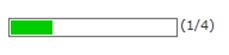 |
The form is not completed |
 |
Ready to Submit | The form is complete and ready to be submitted |
 |
Submitted (04/02/2014 13:58:32) | The form has been submitted |
7. Completing a Submission
7.1 The “Identification” Page
The “Identification” page (see Figure 7-1) is required in each form. This page is pre-populated with information about the organization from SWIM.
The reporter can click the “Name” symbol to open a pop-up support page to select the names of the following two individuals from their respective drop-down boxes:
- “Declarer”: The authority who declares that the information being submitted is accurate and complete.
- “Reporting Contact” name for CEPA 1999 section 71 notices: The individual whom Environment Canada can contact with questions of clarification.
Figure 7-1: The “Identification” page

Long description of the figure 7-1
Figure 7-1: Screenshot of the Identification Page.
- This page contains information such as the company name, the company Canadian federal business number, the Canadian head office physical and mailing addresses, and the reporting contact and declarer names for the Canadian Environmental Protection Act 1999 sections 71 notice.
After a name has been selected, the rest of the fields related to that individual are automatically pre-populated with information from SWIM.
If the required name is not found in the drop-down menu, the reporter can click “Home” to return to the SWIM to update the organization contact information. Refer to Environment Canada’s Single Window - A User’s Guide, “Tutorial 6: Managing Contacts” for more information.
Foreign reporting organizations can indicate an associated Canadian organization name. This data is specific to the submission as there is no associated SWIM field.
After filling in all the required fields, the reporter must always click the “Save” button in order to save the data into the submission.
If the reporter needs to update information about the organization, declarer or reporting contact, they have two options:
- Click “Home” to return to SWIM to update the information and then return back to the “Identification” page, click “Refresh from SWIM” and “Save” in this succession, in order to save the updated information into the submission; or
- Update the information on the Identification page itself and then click “Save to SWIM” in order to save the updated information into the submission.
7.2 The “Substances to Report On” Page
The “Substances to Report On” page (see Figure 7-2) is part of the “Section 71 Notice” and “Declaration of Stakeholder Interest” form. On this page, the reporter can either:
- Search for and then select listed substances to report on; or
- Add substances applicable to this initiative but not found via the search feature.
Figure 7-2: The “Substances to Report On” page

Long description of the figure 7-2
Figure 7-2: Screenshot of the Substances to Report On page.
- It shows that the Add symbol can be found near the top right hand corner of the page. It also shows that the Add Custom button is the second button from the left at the bottom of the page.
- The page depicts the Substances table in which substances selected by a reporter are listed. The table includes the Chemical Abstracts Service Registry Number, the substance name, a description of the substance, a checkbox that specifies if the substance is confidential, the Edit symbol, and the symbol that opens the Actions menu.
The reporter must always click “Save” after adding substances and before leaving the page, since the page shows as “Complete” after the first substance has been added. If not, substances added after the page was last saved are lost from the list once the reporter logs out.
7.2.1 Add a listed substance
In order to add a listed substance, the reporter will search the full set of substances reportable in that form. Then, they can search for a “CAS RN” or a substance name that contains a specific number(s) or letter(s), e.g. “75” or “difluoro”. Search results will display in a table below the “Search Criteria”. The search will return substances that are part of the initiative. A substance that has already been selected will not appear in the search results table. The substance(s) selected from the search results table will appear on the “Substances to Report On” page. The reporter can also add a description and/or change the confidentiality status. Then, they can click “Save” to save the substances into the submission.
7.2.2 Add a substance not found via search
If the “Search” function does not find a substance explicitly listed for the initiative, the reporter can use the “Add Custom” function to add a substance. The reporter needs to record “CAS RN”s and “Chemical Names” where possible, but if these are not known, then the reporter should use the description field for that particular substance. There should be a value in at least one of these fields (“CAS RN”, “Chemical Name”, or “Description”) in order to be able to save the information about the substance and continue the submission process. Click “Save” to save the substance into the submission.
7.3 The “Upload Submission Documents” Page
The “Upload Submission Documents” page (see Figure 7-3) is part of the “Section 71 Notice” and “Declaration of Stakeholder Interest” form.
Figure 7-3: The “Upload Submission Documents” page

Long description of the figure 7-3
Figure 7-3: Screenshot of the Upload Submission Documents page.
- It shows that the Add symbol can be found near the top right hand corner of the page.
- It also depicts the Documents table in which the documents uploaded by a reporter are listed. The table includes the file name, the timestamp at which the document was uploaded, the document size, notes about the document (if applicable), a checkbox that specifies if the substance is confidential, the Edit symbol, and the symbol that opens the Actions menu.
These forms request or require supporting documents; therefore the reporter can upload documents directly as part of the online reporting.
To upload a document, the reporter can click the “Add” symbol on the “Upload Submission Documents” page. Then on the “Browse and Select Document to Upload” page, they can click the “Attach file” symbol. The reporter can add notes and/or change the confidentiality status of the document. Then, they click “Save” to save the documents into the submission.
The following document types are supported: Word (doc, docx), Excel (xls, xlsx) and PDF. If the file size is more than 10 MB or is a document type that is not supported, the document(s) should instead be sent separately (i.e. not via the online submission). The rest of the submission can be completed and submitted online.
7.4 The “Confidentiality and Declaration” Page
The “Confidentiality and Declaration” page (see Figure 7-4) is part of each form. This page is pre-populated with the information of the “Declarer” that was selected on the “Identification” page.
Figure 7-4: The “Confidentiality and Declaration” page

Long description of the figure 7-4
Figure 7-4: Screenshot of the Confidentiality and Declaration page.
- This page contains a text box for submission comments, a checkbox that specifies if the submission comments are confidential, a text box for additional notes on confidentiality, and the declarer’s name and position.
- The checkbox “I declare that the information that I am submitting is accurate and complete” has to be checked before reporters can save this page.
If the reporter has indicated any of the substances or documents as confidential within the form, the checkbox “Pursuant to section 313 of the Canadian Environmental Protection Act, 1999, I request that all or parts of the information that I am submitting be treated as confidential, as indicated.” will be checked. Otherwise, the system will automatically check the “I do not request that the information that I am submitting be treated as confidential and I consent to it being released without restriction.” checkbox. Submission comments and additional notes on confidentiality can be entered on this page.
The reporter must check the "I declare that the information that I am submitting is accurate and complete." checkbox before saving the page.
8. Editing, Deleting and Generating a Report of a Submission
The reporter does not have to complete a submission in one session. They can instead save the changes to any of the form pages and then logout, if needed. When logging back in, the reporter can either click the “Edit row” symbol or choose “Edit” from the drop-down menu under “Actions” on the CMP reporting dashboard (see Figure 8-1) and continue entering information into the submission forms. Clicking “Edit” will always open the selected form to the “Identification” page.
Figure 8-1 “Actions” menu items

Long description of the figure 8-1
Figure 8-1: Screenshot of the Actions menu and the Edit symbol under it.
- The actions depicted in this screenshot are Edit, Delete and Generate Report.
Any form that is not yet submitted can be deleted by selecting the “Delete” option from the drop-down menu (see Figure 8-1). A warning will prompt the reporter to confirm that the submission and all its contents will be deleted. When a form is deleted, all the saved information is deleted and cannot be retrieved. When the deletion is completed, the form can be restarted by clicking the “Edit row” symbol under “Actions” on the CMP reporting dashboard.
Any form that has already been submitted can also be deleted, but must first be un-submitted and the reporter must provide a clear rationale to explain why the previously submitted data is now being un-submitted. Once this is done, the reporter must follow the same process to delete as if the data had not been submitted.
At any time, the reporter can view or print the submission by either clicking the “Generate Report row” symbol (if displayed) or choosing “Generate Report” from the drop-down menu on the CMP reporting dashboard (see Figure 8-1). Note that the “Generate Report row” symbol is only available when the status of a form is “Submitted”.
After choosing “Generate Report”, the “Report / Print View” page opens. While on the “Report / Print View” page, the reporter can export the report as a PDF file which can be saved as an electronic version of the report for records or to submit.
9. Submitting a Submission
The submission must be electronically submitted to transmit the data to the Chemicals Management Plan. The reporter can submit the submission by selecting the form and then either clicking the” Submit row” symbol (if displayed) or choosing “Submit” from the “Actions” drop-down menu on the CMP reporting dashboard (see Figure 9-1). Note that the “Submit row” symbol is only available when the status of a form is “Ready to Submit”.
Figure 9-1: The “Submit” menu item under “Actions”

Long description of the figure 9-1
Figure 9-1: Screenshot that displays how to submit a submission.
- The Submit item is selected under the Actions drop-down menu. The Submit symbol is also visible under Actions.
If the “Submit” option is not displayed under “Actions”, it is because there are still pages that are not fully completed. The reporter must correct any errors and/or fill out all the information so that all pages (“Identification”, “Substances to Report On”, “Upload Submission Documents”, and “Confidentiality and Declaration”) have their status set to “Complete”. Then they can return to the CMP reporting dashboard to submit the submission.
After choosing “Submit”, the reporter will arrive at the “Submitting the Submission” page. They should review this page and then click “Submit”. An information pop-up support page will let the reporter know that the report was successfully submitted. After clicking "OK", the “Submitting the Submission” page will reload displaying a time-stamp confirming the date and time of the submission.
For a Section 71 Notice, the reporter is required to sign a paper copy of the Confirmation page only. After clicking “Submit”, the reporter must print the “Submission Confirmation”, sign it, and send it to the Substances Management Coordinator before the reporting deadline.
Address:
Substances Management Coordinator
Chemicals Management Plan
200 Sacré-Coeur Boulevard,
Gatineau QC K1A 0H3
Telephone:
819-953-7156 (outside of Canada) or 1-800-567-1999 (toll free in Canada)
Fax:
819-953-7155
Email:
Substances@ec.gc.ca
For a Declaration of Stakeholder Interest and Declaration of Non-Engagement, the reporter is not required to print, sign and send in a paper copy when submitting online. The reporter must simply click “Submit”, view the confirmation page, and print a copy for their records, if applicable.
The system sends an email to confirm that the submission was received (see an example in Figure 9-2).
Figure 9-2: Submission confirmation email

Long description of the figure 9-2
Figure 9-2: Shows an example of a confirmation email that the reporter receives after submitting their submission.
If the reporter do not receive this email (i.e., because system-generated emails are sometimes blocked by corporate email servers), they can confirm the status on the CMP reporting dashboard.
10. Un-submitting a Submission
Once a submission has been submitted, it cannot be modified until after it is un-submitted. To un-submit a submission, the reporter can select the appropriate submission on the CMP reporting dashboard and select the “Un-submit” option from the drop-down menu (see Figure 10-1).
Figure 10-1: The “Un-submit” menu item under “Actions”

Long description of the figure 10-1
Figure 10-1: Screenshot that displays how to un submit a submission.
- The Un submit item is selected under the Actions drop-down menu. The Generate Report symbol is also visible under Actions.
A rationale is required when un-submitting a submission. Before a submission can be re-submitted, it will need to pass the validation process, that is, all the pages must have their status set as “Completed”. If the reporter does not see the “Un-submit” option in the drop-down menu, it means that the submission is not currently submitted.
11. How to Contact Us
If more assistance is required, please contact us at:
Address:
Substances Management Coordinator
Chemicals Management Plan
200 Sacré-Coeur Boulevard,
Gatineau QC K1A 0H3
Telephone:
819-953-7156 (outside of Canada) or 1-800-567-1999 (in Canada only)
Facsimile:
819-953-7155
Email:
Substances@ec.gc.ca


