
Confirm my representative's authorization request
Confirm my Representative is a two-step verification process that allows you to easily and securely control who has access and what level of access your representative has to your personal and tax information. As an individual taxpayer, business owner, trustee of a trust account, non-resident tax account owner, or a registered plan owner, you can confirm certain authorization requests submitted by your representative. You can do this easily and securely using the Confirm my Representative service in your CRA account.
On this page
- If you're an individual
- If you're a business owner
- If you're a trustee of a trust account
- If you have a non-resident tax account
- If you're a registered plan owner
- Relevant information for your representatives
If you're an individual
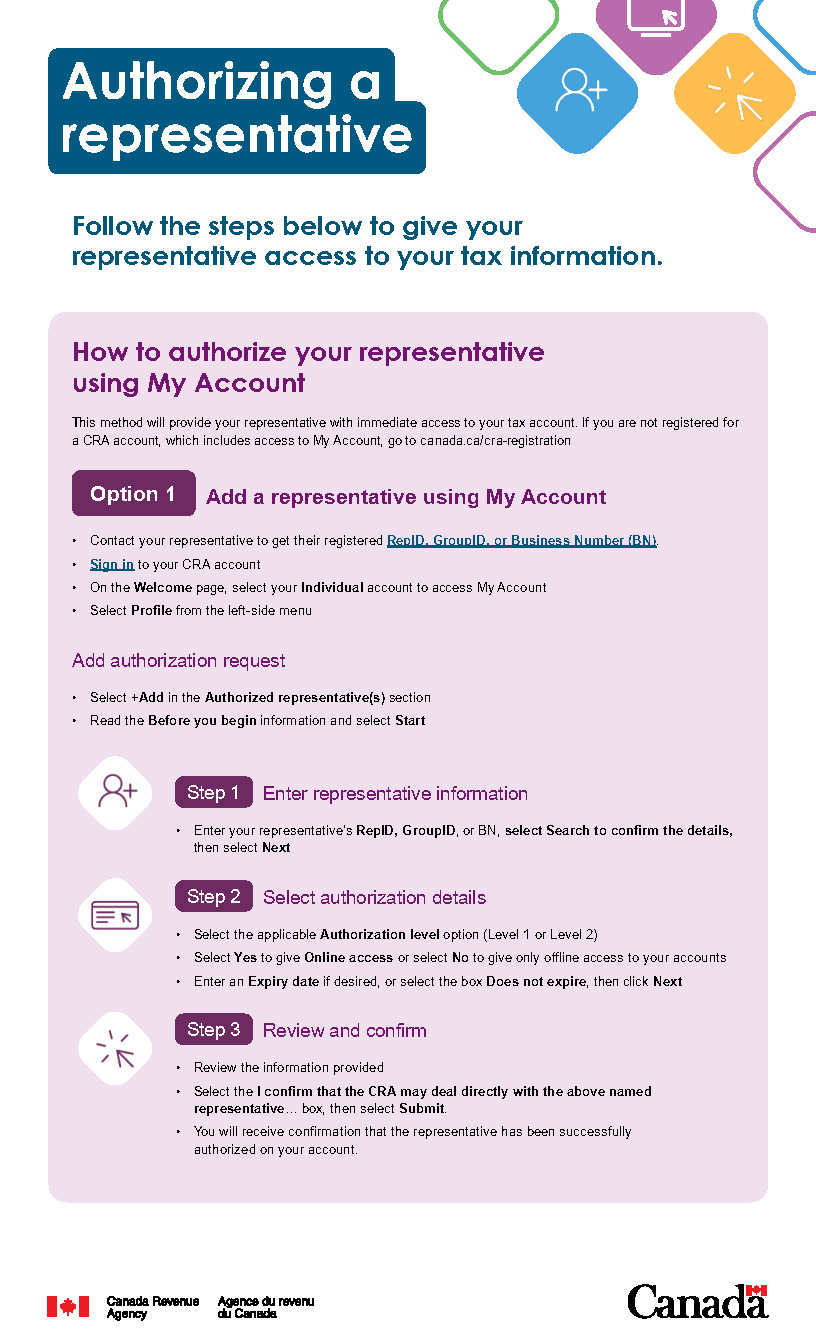
The Confirm my Representative service allows you to verify all new authorization requests submitted by representatives through Represent a Client, including:
- authorizing a new representative on your account
- accepting requests for changes to the access level of existing representatives
How to access Confirm my Representative in My Account
You must be registered for a CRA account to use the Confirm my Representative service.
- If you already have access to My Account, you can turn on email notifications to get messages when your representative submits a new authorization request. You can access your authorization requests in the "Authorized representative(s)" section in My Account
- If you don't have access, you can register for a CRA account
Confirming or denying authorization requests
If a representative submits an authorization request, you must confirm or deny it within 10 business days in My Account or the request will be cancelled. If you still want to authorize a representative after this time period, you must ask your representative to submit a new request.
To confirm or deny an authorization request from your representative, complete the following steps:
Step 1: Sign in to your CRA account
Step 2: On the Welcome page, select your Individual account to access My Account
Step 3: From the navigation menu on the left, select Profile
Step 4: In the "Authorized representative(s)" section, select Confirm pending authorizations
Step 5: Under "Pending representative authorizations," select the representative's name to proceed. If there are no pending authorization requests, you will see "As of [the current date] you have no pending representatives"
Alternative process for individuals
You (or your legal representative) can also choose to authorize your representative using your information from a previous notice of assessment. If you choose this option:
- you must provide your representative with information from a notice of assessment that was sent to you at least six months ago
- your representative must provide this information when they submit their initial authorization request
- you'll need to sign the certification page before they can submit it to us
- your representative will need to submit the signed certification page using the Submit button in their "Pending authorization requests" table in Represent a Client. Do not mail or fax a copy of the certification page to the CRA. These copies won't be processed or returned to you
Even with this information provided, the CRA may still contact you (or your legal representative) to verify your representative's authorization request. Your representative's request for authorization will generally be processed instantly.
If you're a business owner
Your representative can submit authorization requests using Represent a Client or using their certified tax software (EFILE). You must use the Confirm my Representative service in My Business Account to confirm or deny these requests.
How to access Confirm my Representative in My Business Account
You must have already added My Business Account to your CRA account to use the Confirm my Representative service.
- If you have already added My Business Account, you can turn on email notifications to get messages when your representative submits a new authorization request. You can access your authorization requests in the "Authorized representatives" section in My Business Account
- If you have not added My Business Account yet, you have two options:
- If you're already registered for a CRA account, as a business owner, you also have access to My Business Account. Simply sign in to your CRA account, and select Add account to add My Business Account
- Register for your CRA account and, after verifying your identity, select Add account to add My Business Account
Once you have accessed My Business Account, you'll need to add your business number to your account. You can only complete this if your name and social insurance number match the information the CRA has on file for your business. If you get an error message at this step, you'll need to contact the CRA to update your records.
Confirming or denying authorization requests
If a representative submits an authorization request, you must confirm or deny it within 10 business days in My Business Account or the request will be cancelled. If you still want to authorize a representative after this time period, you must ask your representative to submit a new request.
To confirm or deny an authorization request from your representative, complete the following steps:
Step 1: Sign in to your CRA account
Step 2: Select your Business account to access My Business Account
Step 3: From the navigation menu on the left, select Profile
Step 4: In the "Authorized representatives" section, select Manage authorized representatives
Step 5: Select Confirm pending authorizations
Step 6: Select the pending request
Step 7: Select Confirm or Deny to finalize the request
Note
Business owners or directors can designate a delegated authority within their organization, such as a financial officer, to deal with tax matters on their behalf. To do this, the owner or director needs to access My Business Account at least once to authorize this person as a level 3 delegated authority. This level 3 representative will then be able to confirm or deny new authorization requests for other representatives. To learn more about the levels of authorization, go to Level of access you can give.
For information about corporations, go to Access to corporate tax information.
Alternative process for sole proprietors
Sole proprietors who want to use the same representative for both their business and personal taxes may not have to use the Confirm my Representative service in My Business Account. If you're a sole proprietor and you don't have access to the CRA account and Confirm my Representative services, the CRA may automatically activate authorization requests that your representative submits through Represent a Client or certified tax software (EFILE) after you have signed the appropriate signature page. You may be eligible if you meet certain conditions such as:
- you're a sole proprietor
- your social insurance number is linked to your business account
- you already have the representative authorized on your individual account
Your representative's request for authorization will generally be processed within five business days.
Exclusions to the Confirm my Representative service
Confirm my Representative isn't available for businesses where all of the owners or directors have been identified to the CRA as being non-residents of Canada and there is no delegated authority, or if the authorization request is certified (signed) by a legal representative (such as an executor or a trustee) of the business. In these cases:
- your representative will need you to sign the certification page generated in Represent a Client when they submit the authorization request to the CRA
- your representative will then need to submit the signed certification page using the Submit button in their "Pending authorization request" table. Do not mail or fax a copy of the certification page to the CRA. These copies won't be processed or returned to you
Even with this information provided, the CRA may contact the business by telephone to verify a representative's authorization request. Your representative's request for authorization will generally be processed within five days. It is very important to keep the residency status of a business owner up-to-date in the CRA's records.
If you're unable to access My Business Account, you may contact Business Enquiries at 1-800-959-5525 for more information.
If you're a trustee of a trust account
Your representative can submit authorization requests using Represent a Client and ask you to finalize the request. You must use the Confirm my Representative service in My Trust Account to confirm or deny these requests.
If you're a primary trustee and you don't have access to My Trust Account, go to About My Trust Account.
How to access Confirm my Representative in My Trust Account
You must be authorized as a trustee in My Trust Account to use the Confirm my Representative service.
If you're a trustee with online access to the trust account, you can sign in to your CRA account to access Represent a Client and find your authorization requests in the "Authorized representative(s)" section in My Trust Account.
To confirm or deny an authorization request from your representative, complete the following steps:
Step 1: Sign in to your CRA account
Step 2: Select your Representative account to access Represent a Client
Step 3: Enter the Trust Number (T3) and select Access T3
Step 4: From the navigation menu on the left, select Profile
Step 5: In the "Authorized representative(s)" section, select Confirm pending authorizations
Step 6: Select the pending request
Step 7: Select Confirm authorization or Deny authorization, then click Submit to finalize the request
Note
To add more trustees, submit legal documentation supporting their appointment as a trustee to the CRA (unless previously provided) and include their RepID online access.
If you have a non-resident tax account
Your representative can submit authorization requests using Represent a Client. You must use the Confirm my Representative service in Non-Resident Withholding Tax to confirm or deny these requests.
How to access Confirm my Representative in Non-Resident Withholding Tax
You must have already added Non-Resident Withholding Tax to your CRA account to use the Confirm my Representative service.
- If you have already added Non-Resident Withholding Tax, you can turn on email notifications to get messages when your representative submits a new authorization request. You can access your authorization requests in the "Authorized representatives" section in Non-Resident Withholding Tax
- If you have not added Non-Resident Withholding Tax yet, you have two options:
- If you're already registered for a CRA account, to view other accounts, simply sign in to your CRA account, and select Add account to add your non-resident tax account number and have access to Non-Resident Withholding Tax
- Register for your CRA account and, after verifying your identity, select Add account to add your non-resident tax account number and access Non-Resident Withholding Tax
Confirming or denying authorization requests
If a representative submits an authorization request, you must confirm or deny it within 10 business days in Non-Resident Withholding Tax or the request will be cancelled. If you still want to authorize a representative after this time period, you must ask your representative to submit a new request.
To confirm or deny an authorization request from your representative, complete the following steps:
Step 1: Sign in to your CRA account
Step 2: Select your Non-resident tax account to access Non-Resident Withholding Tax
Step 3: From the navigation menu on the left, select Profile
Step 4: In the "Authorized representatives" section, select Manage authorized representatives
Step 5: Select Confirm pending authorizations
Step 6: Select the pending request
Step 7: Select Confirm or Deny to finalize the request
If you’re a registered plan owner
How to confirm a representative in your Registered Plan Administrator Account
You must have already added the Registered Plan Administrator Account to your CRA account to confirm a representative.
If you have already added your Registered Plan Administrator Account you can access your authorization requests in the “Authorized representative” section. You can turn on email notifications to get messages when your representative submits a new authorization request.
If you have not added the Registered Plan Administrator Account yet, refer to How to access the Registered Plan Administrator Account. Once you have accessed your Registered Plan Administrator Account, you’ll need to add the registered plan number you want your representative to access.
Confirming or denying authorization requests
If a representative submits an authorization request, you must confirm or deny it within 10 business days in your Registered Plan Administrator Account or the request will be cancelled. If you still want to authorize a representative after this period, you must ask your representative to submit a new request.
To confirm or deny an authorization request from your representative, complete the following steps:
Step 1: Sign in to your CRA account
Step 2: On the Welcome page, select your registered plan to access Registered Plan Administrator Account
Step 3: From the navigation menu on the left, select Profile
Step 4: In the "Authorized representatives" section, select Confirm pending authorizations
Step 5: Select the pending request
Step 6: Select Confirm authorization or Deny authorization, then click Submit to finalize the request.
Relevant information for your representatives
The process to confirm a representative will apply to all new authorization requests that your representative submits using Represent a Client and for requests they submit through the Business Consent Service in certified tax software (EFILE).
Note
Authorization requests for individual accounts can no longer be submitted using certified tax software (EFILE). Refer to Digital services for tax preparers for more information.
After submitting the authorization request
Your representative can view the status of their authorization requests in Represent a Client. If they submit a new request before the original request is confirmed or denied, it will replace the original request.