
CAF Compensation and Benefits (C&B) Mobile Application
The new Canadian Armed Forces Compensation and Benefits (CAF C&B) Mobile Application for CAF members is now live.
- Access pay statements securely on your mobile device.
- Stay connected and manage your finances with convenient features like viewing, printing, and saving pay statements, as well as receiving notifications for new statements.
- Access your financial information on-the-go with this secure, cloud-based app. Find information about installing and using the CAF C&B app in resources.
If you are a Reserve Force member, learn more about the new Reserve Time Management Application (RTMA).
Key features
- Securely view your pay statements without logging onto the DWAN
- Available for download from the Google Play Store or the Apple App Store
- Users’ security is protected through a two-level authentication


Notifications and installing the CAF C&B Mobile App on your Android Phone
Installing
- Open your Play Store
- Search for the CAF C&B app
- Install and follow the instructions
Notifications
Check app notifications settings
- Go to "Settings" on your device
- Tap on "Apps" (or a similar option, depending on your device)
- Find and select CAF C&B app in the list
- Tap "Notifications" and ensure that notifications are enabled
Figures 1 and 2
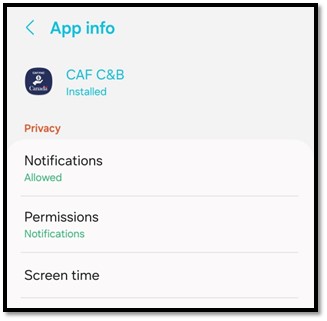
Figure 1: Text version
Settings menu for Android phone
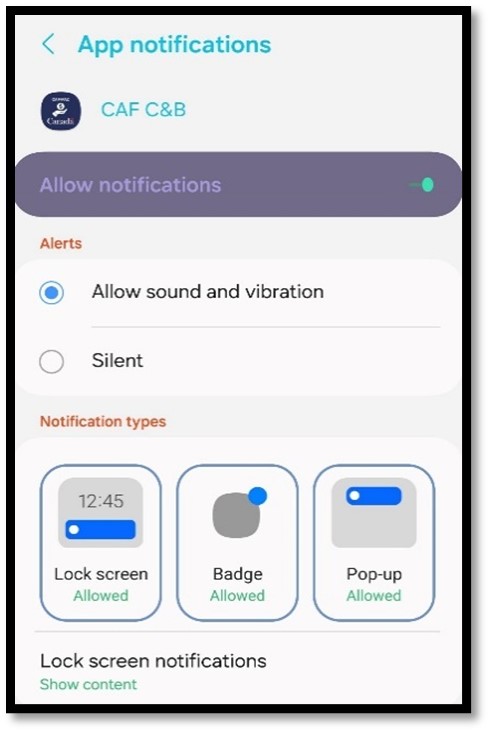
Figure 2: Text version
Notifications settings for Android phone
Permissions
- Go to "Settings" and select "Apps"
- Find and select CAF C&B
- Tap on "Permissions" and make sure it has all necessary permissions enabled, especially for notifications, internet access, and background activity
Figure 3
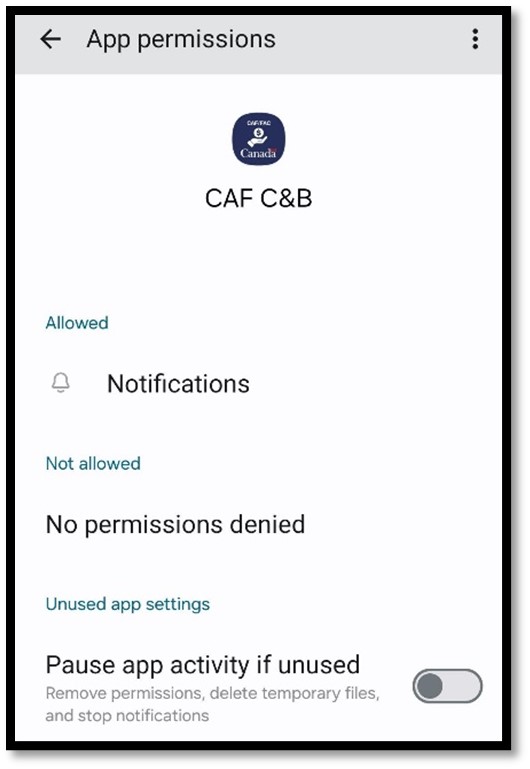
Figure 3: Text version
Permission settings for Android phone
System-wide notification settings
- In "Settings", go to "Sound & notification" or "Notifications"
- Ensure that "Do Not Disturb" is not activated or set in a way that blocks the app’s notifications
- Check "App notifications" or "Manage notifications" to make sure the app is allowed to send notifications
Figures 4 and 5
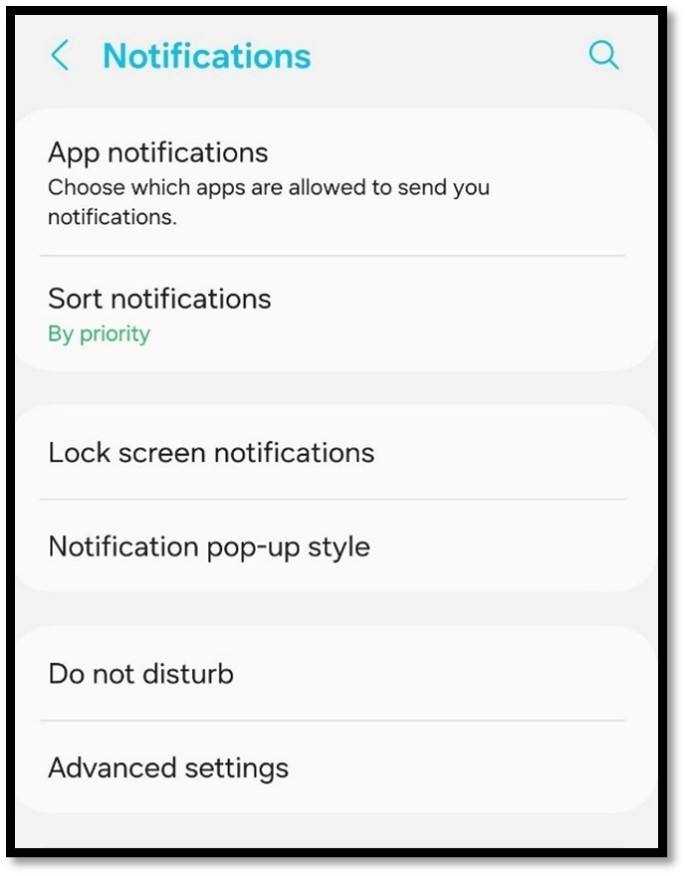
Figure 4: Text version
Notifications settings for Android phone

Figure 5: Text version
Notifications settings for Android phone
Notifications and installing the CAF C&B Mobile App on your iPhone
Installing
- Open your App Store
- Search for CAF C&B App
- Click install and follow the instructions
Notifications
Check app notifications settings
- Go to "Settings"
- Scroll down and select CAF C&B
- Tap "Notifications"
- Ensure that "Allow Notifications" is toggled on
- Choose the alert style (Lock screen, Notification Center, Benners) and toggle "Sounds" and "Badges" as needed
Figures 6 and 7
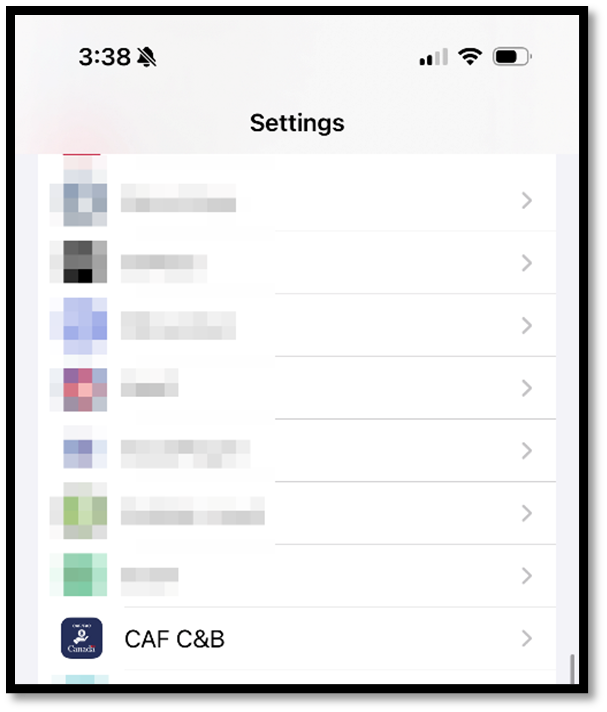
Figure 6: Text version
Settings menu for iPhone
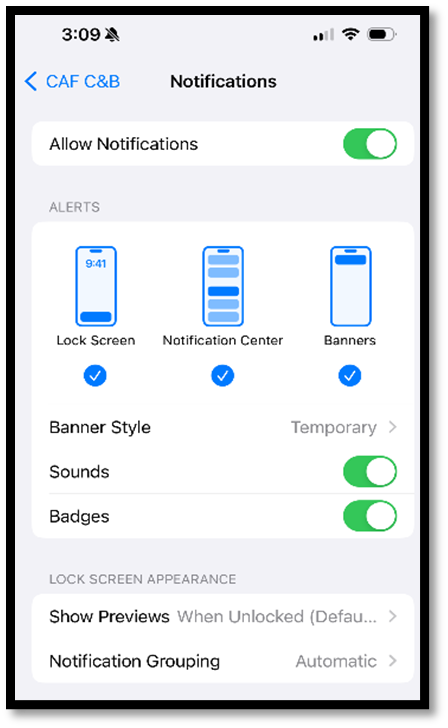
Figure 7: Text version
Notifications settings for iPhone
System-wide notification settings
- Open "Settings"
- Tap "Notifications"
- Ensure "Show Previews" is set to "Always" or "When Unlocked", depending on your preference
- Make sure "Do Not Disturb" is turned off or set to a schedule that does not conflict with when you want to receive notifications
Figure 8
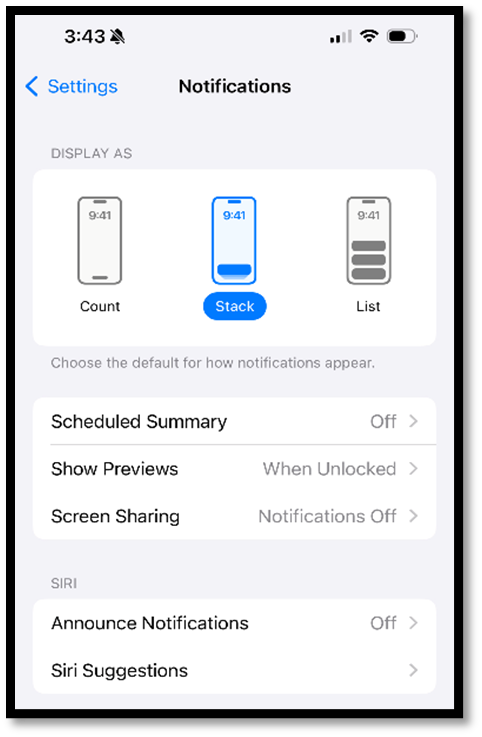
Figure 8: Text version
Notifications settings for Android phone
Focus modes
- In "Settings", tap "Focus"
- Check if any Focus modes (such as Do Not Disturb, Sleep, Work, etc.) are enabled. If they are, tap on the mode and review the "Allowed Notifications" to make sure the app is included.
Figures 9, 10, 11
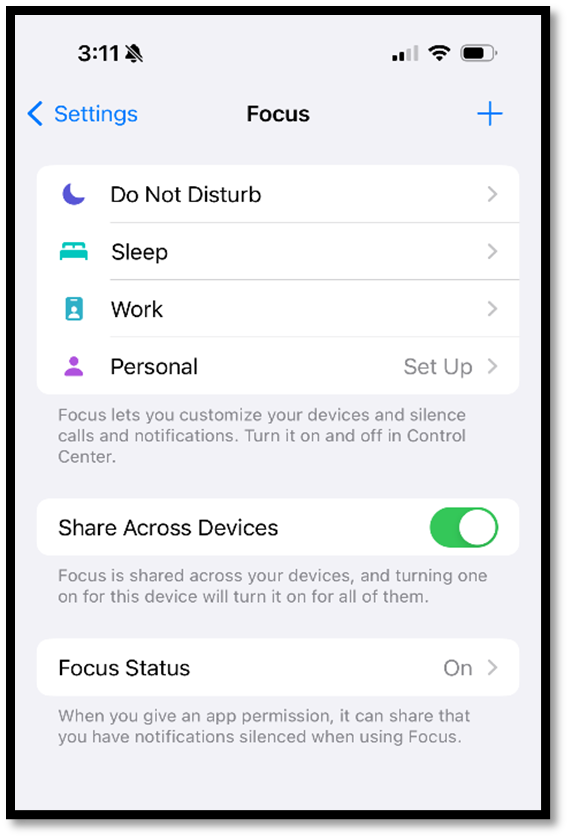
Figure 9: Text version
Do not disturb settings for iPhone
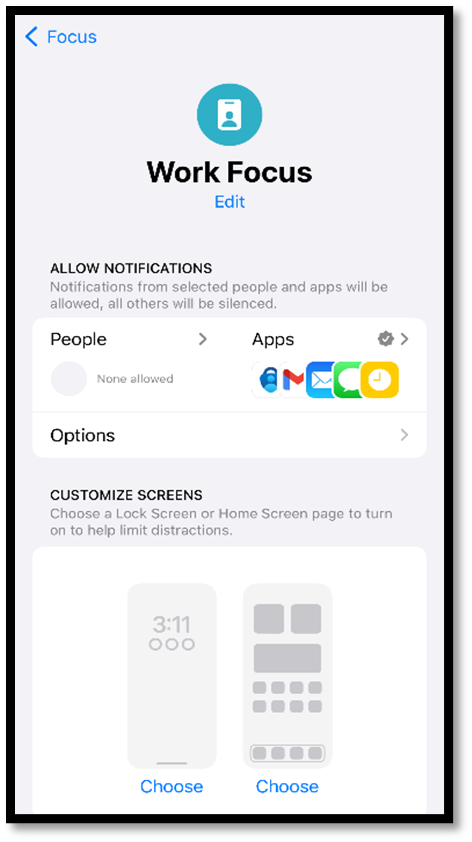
Figure 10: Text version
Do not disturb settings for iPhone
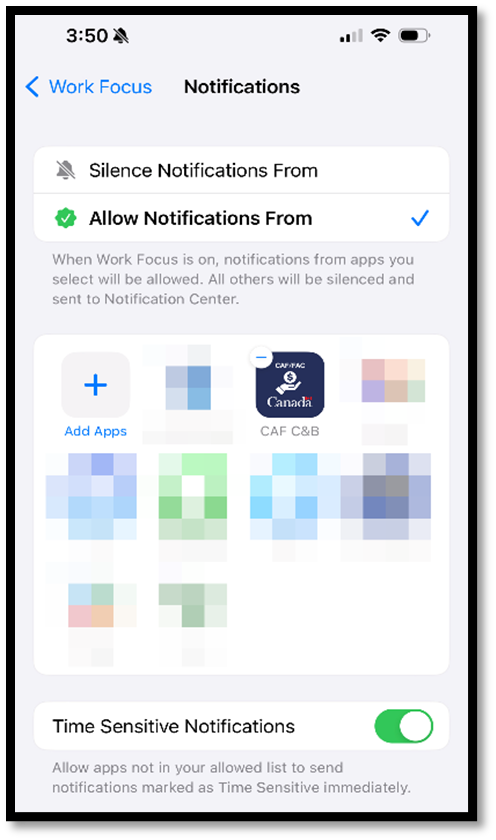
Figure 11: Text version
Do not disturb settings for iPhone
Background app refresh
- Go to "Settings"
- Tap "General"
- Tap "Background App Refresh" and ensure it is enabled for CAF C&B
Figures 12 and 13
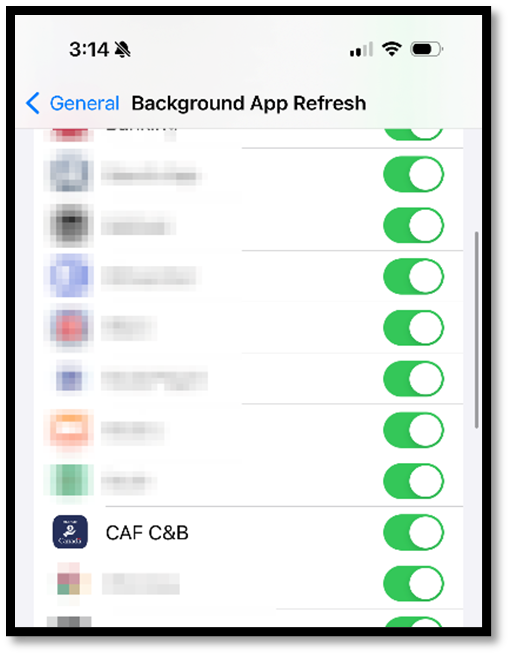
Figure 12: Text version
iPhone settings menu
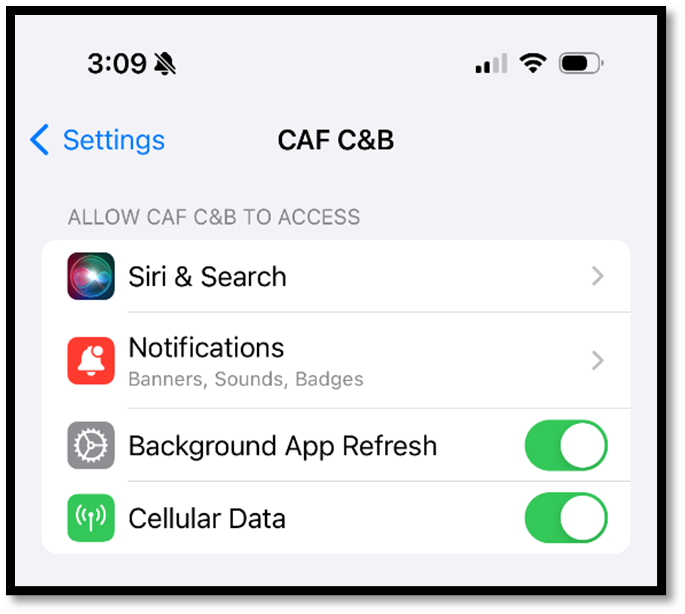
Figure 13: Text version
iPhone settings menu
CAF C&B Mobile App
Introduction
Welcome to the Canadian Armed Forces (CAF) C&B Mobile Application (App) On-Boarding Guide. The purpose of this guide is to help you download, install and setup the app on your phone, and to help you access your pay statements and T4s if available.
- Login
- Notifications
- Pay Statements Retrieval
- Tax Slips Retrieval
- Language Preference
Note: The dual CAF C&B Mobile App screens displayed in this document reflect the individual iPhone and Android smartphone screens.
Minimum requirements for downloading the app on your smartphone
- Personal smartphone (not DND-provided)
- Apple iPhone iOS (operating system) version 11 or higher
- Android OS (operating system) version 7 or higher
Installing the CAF Mobile App
- On your Android Smartphone, navigate to the "Google Play Store"
- On your iOS “Apple” Smartphone, navigate to the "App Store"
- Within the Store, search for the "CAF C&B MOBILE APP" (app icon below)
- Once the CAF C&B Mobile App is installed, tap on the "Open" button
- When the app runs for the first time, it may ask you to allow it to access your phone storage. This permission is required for PDF documents to be saved locally under your Documents/CAF folder. Tap on the "Allow" button to accept.
- The CAF C&B Mobile App can only be downloaded and registered within Canada. However, once registered, you can use the app outside the country. Please ensure that your App Store location is set to Canada in your settings before downloading the app.
Enabling notifications
Android
- Unless manually changed, push notifications are allowed by default. To verify or enable push notifications for the app, go to "Settings", and then select "Notifications" to verify the settings, as shown below (Figure 14).
- On the CAF Mobile App, ensure "Show Notifications" is selected.
iOS
A pop-up message is displayed asking if you would like to be sent notifications. Select the "Allow" button to permit the CAF C&B Mobile App to send notifications to your smartphone.
Figure 14
iPhone and Android
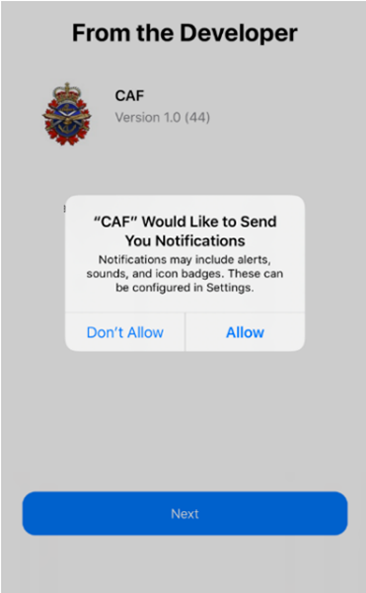
Figure 14: Text version
iPhone notification alert
Login
- On the "Secure Login" (see figure 15) screen, click on:
- "Sign in with D365" if you have a Defence 365 account
- "Sign in with C365" if you have a Cadet 365 account and you are a COATS members
- You will login using an Authenticator app on your phone if you have one installed, or a webpage will open for you to sign in with your account
- If this is your first time logging in, you will have to register once the CAF Mobile App menu is displayed
Figure 15
iPhone and Android
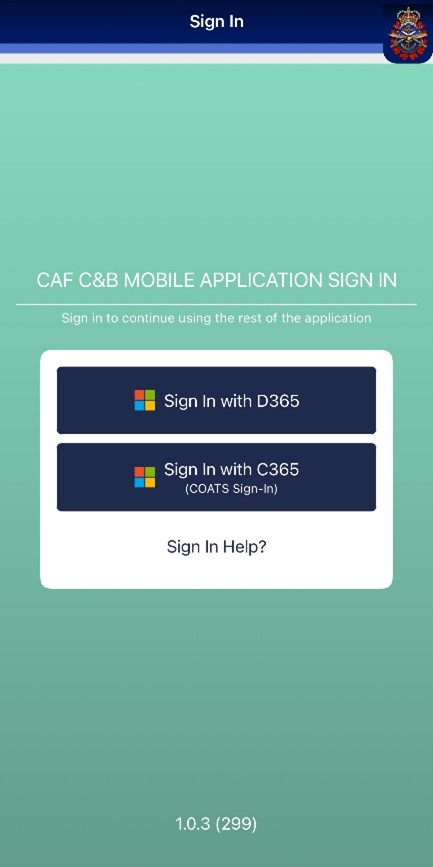
Text version
Mobile app sign in page
Language
The CAF C&B Mobile App defaults to the language preference of your smartphone. Change the language preference within the app by selecting French or English.
- From the CAF C&B Mobile App menu (see figure 16), select "Settings", and then tap "Language". On the Change Language screen, the default language is indicated by a green check mark.
- Select your preferred langauge. The language change is applied immediately.
Note: Your pay statement is displayed in the language selected in the pay system.
Figure 16
iPhone and Android
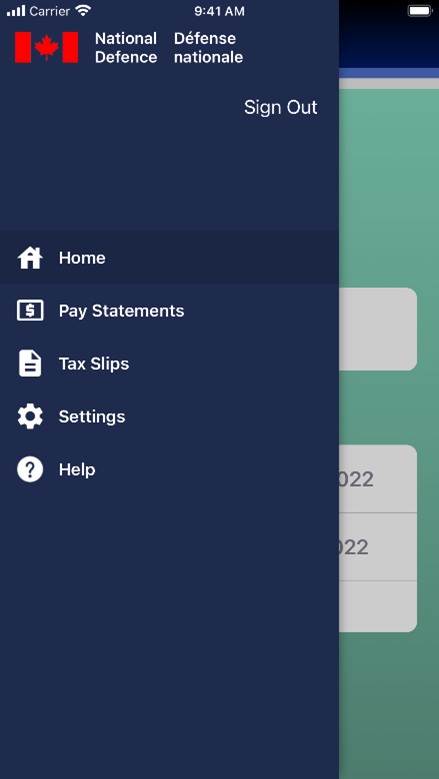
Figure 16: Text version
Mobile app main menu
Retrieve pay statement
- To retrieve your pay statements, select "Pay Statements" from the CAF C&B Mobile App menu (see figure 17). The "Pay Statements" screen is displayed listing the Central Computation Pay System (CCPS) and Revised Pay System for the Reserves (RPSR) pay statements available for viewing by pay period.
Figure 17
iPhone and Android
Text version
Mobile app main menu
- Select a pay statement item (see figure 18). Your statements will display CCPS or RPSR dependent on which pay system administers your pay.
- The iPhone CAF C&B Mobile App opens the pay statement within the app
- The Android CAF C&B Mobile App asks for an application to use to open the pay statement
Figure 18
iPhone and Android
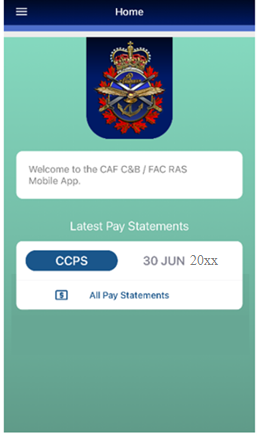
Text version
Mobile app pay statement page
- Select your preferred application to view the pay statement PDF document (see figure 19). If you select to Export/Download your pay statement, for security and compatibility reasons, the CAF C&B Mobile App doesn't allow direct downloads to cloud services like Google Drive. Files must first be saved to the device, then manually uploaded to a cloud drive if needed to ensure data protection and proper handling.
Notes:
- Android: The PDF document is saved in the Documents/CAF folder.
- Phone: The PDF is saved in your Downloads folder. You can access it via the Files app under iCloud Drive.
Figure 19
iPhone and Android
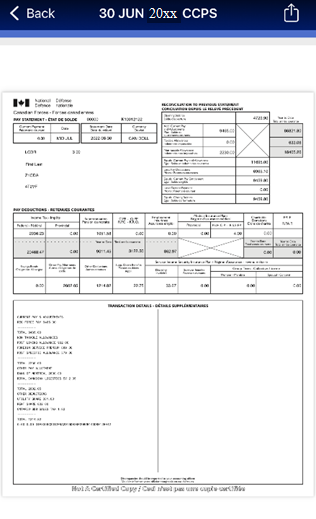
Text version
Example of Pay statement
- Once finished viewing your pay statement, tap the back arrow in iOS or the back button on an Android to return to the "Pay Statements" screen.
- Tap the Hamburger icon at the top left of the screen to return to the CAF C&B Mobile App menu.
- Your smartphone displays a notification that a new pay statement is available for viewing (see figure 20).
Figure 20

Text version
iPhone notification alert
Tax slip notification and retrieval
Your smartphone displays a notification that a new CAF tax slip is available for viewing (see figure 21).
Figure 21

Text version
iPhone notification alert
- To retrieve your tax slip, log into the CAF Mobile App
- Tap the Hamburger icon at the top left of the screen (see figure 22)
- Select Tax Slips from the CAF C&B Mobile App menu
Note:
- You can download tax slips at any time or place that has a mobile phone signal
- You will not receive or be able to view a T4 until the first T4 season. (for example, if you register the application in 2024, you will not see your first T4 until the 2024 T4s are released in 2025)
Figure 22
iPhone and Android
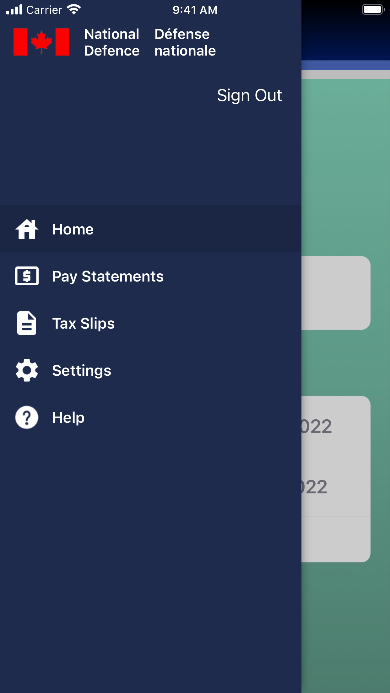
Text version
Mobile app main menu
- Tap on your Tax slip (See figure 23)
Figure 23
iPhone and Android
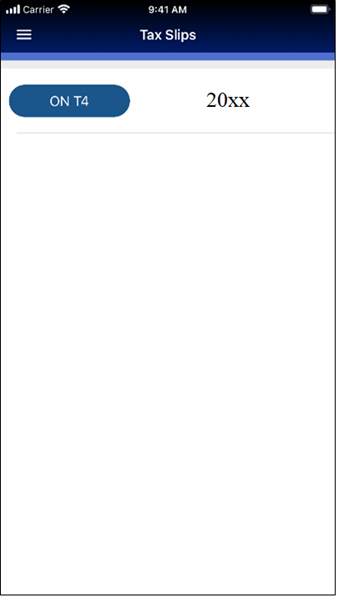
Text version
Mobile app tax slips section
Notes:
- The iPhone CAF C&B Mobile App opens the selected tax slip within the app
- The Android CAF C&B Mobile App asks for an application to use to open the Tax Slip
- Select your preferred application to view the tax slip PDF document. The App will display you 20xx tax slip (see figure 24).
Figure 24
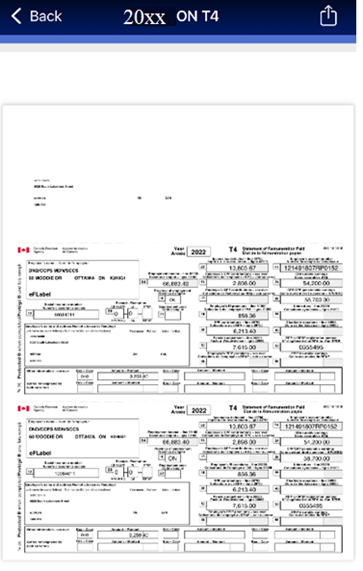
Text version
Example of tax slip
Note: The PDF document is saved in the Documents/CAF folder on your Android smartphone.
- Once finished viewing your tax slip, tap the back arrow in iOS or the back button on an Android to return to the "Tax Slips" screen
- Tap the Hamburger icon at the top left of the screen to return to the CAF C&B Mobile App menu
Support and troubleshooting
Pre-Login: Authentication, password, or credential issues.

Text version
Pre-login troubleshooting page in the mobile app
Post-Login: Pay statement errors, tax slip issues, or server timeouts.

Text version
Post-login troubleshooting page in the mobile app
Note: Both sections include a "Contact us" button for direct assistance from the support team.
Get started with Defence 365
Any questions to the following authorities: Microsoft 365 help & learning.
Activate your account
Activate your account by following the instructions in the onboarding guide that suits your device:
If you have onboarded previously and need to add, change or remove an authentication method because you have a new device, or you want to change your previously selected authentication method, visit the Multi-Factor Authentication (MFA) Guide for D365.
Start Using D365
From a browser, sign into D365 on the web
- Sign in to www.office.com from a web browser using your D365 user account information
- Select the App Launcher (the 'waffle' tiles in the top left-hand corner) to start using D365 apps such as Teams or Outlook
From a mobile device
Work on any device from any location as if you were in the office - join a meeting or send emails from your mobile device. For a better experience, we strongly recommend downloading the mobile apps (Teams, SharePoint, etc.) rather than using browsers on an Android or Apple device.
View the D365 Guide to Installing Applications on Work Issued Mobile Devices to get started.
From a desktop
On DWAN, you can download the Microsoft Teams desktop application from “Run Advertised Programs” in your “Control Panel” or “Software Center” in the “Start Menu”. Open the application and log in using your D365 email address (@ecn.forces.gc.ca).
Get started with Cadet 365
Direct any questions to the following authorities: Microsoft 365 help & learning.
Activate your account
Activate your account by following the instructions in the onboarding guide that suits your device, please note this application is not available to Civilian Instructors.
If you have onboarded previously and need to add, change or remove an authentication method because you have a new device, or you want to change your previously selected authentication method, visit the Multi-Factor Authentication (MFA) Guide for Cadet365.
Start using C365
From a browser
- Sign in to www.office.com from a web browser using your C365 user account information
- Select the App Launcher (the 'waffle' tiles in the top left-hand corner) to start using C365 apps such as Teams or Outlook
From a mobile device
After onboarding, you can set-up Cadet365 on up to 5 personal devices. You CAN access your @cadets.gc.ca email on your smartphone. For a better experience, we strongly recommend downloading the mobile apps (Teams, SharePoint, etc.) rather than using browsers on an Android or Apple device. Click on the C365 Set up your personal Devices to get started.
From a desktop
On DWAN, you can download the Microsoft Teams desktop application from “Run Advertised Programs” in your “Control Panel” or “Software Center” in the “Start Menu”. Open the application and log in using your C365 email address.